How to trigger and post data to Make with an Axiom.ai automation
You can connect your browser automation to Make and pass data, including scraped data, to any of your scenarios. Connecting the browser to your API couldn’t be simpler. This guide will walk you through using Axiom.ai's "Trigger webhook" step to post data to Make and setting up a scenario to receive the data.
This guide assumes you have a Make account and have created your Axiom.ai automation. To learn more about our Make integration, see our working with Make documentation.
# Getting started
To get started, you will need the following from the Axiom.ai Chrome extension:
- API key - The API key is found on the dashboard.
- Automation name - Get the name of the automation you wish to trigger.
- Endpoint - The current endpoint is
https://lar.axiom.ai/api/v3/trigger.
# Trigger and send data to Make with an Axiom.ai automation
Open Make, and either edit or create a new scenario to get started, then follow the steps below.
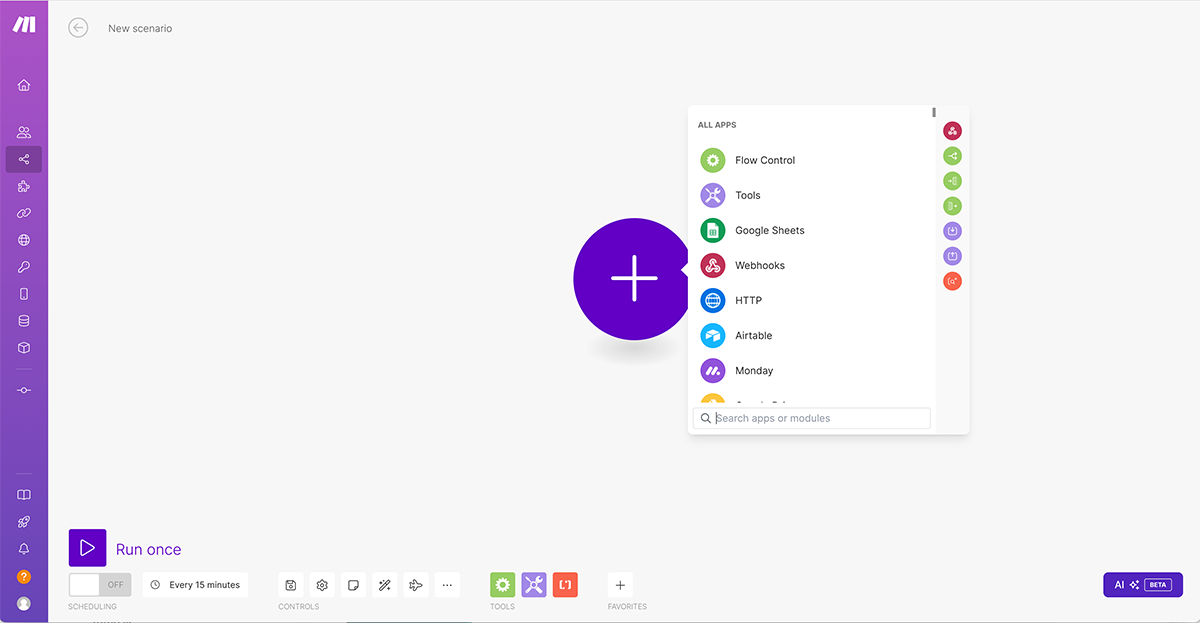
- Log into Make, click on "Scenarios", and open an existing or create a new scenario.
- If the App selector is open, click "Webhooks", or click the plus button to open the app selector.
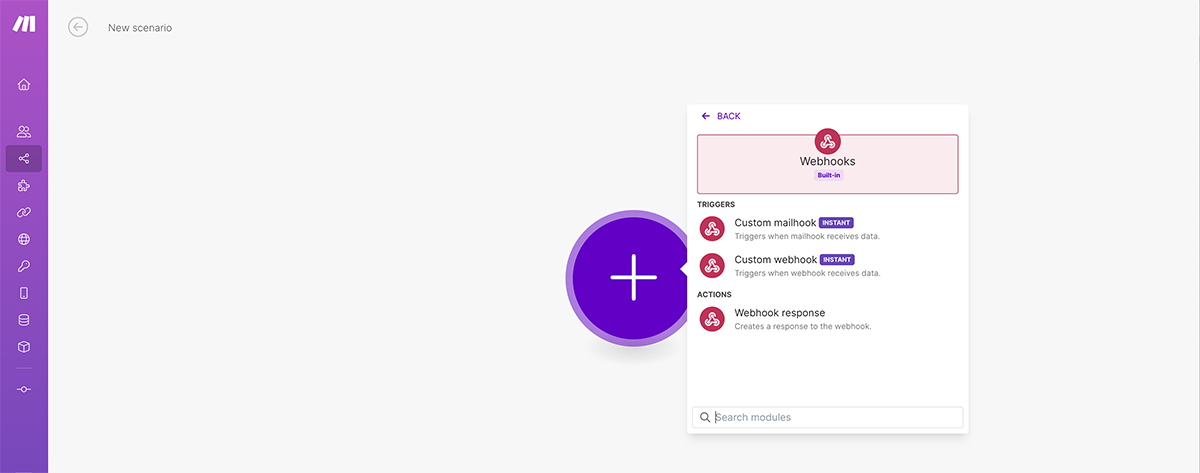
- Under "Triggers", select "Custom webhook".
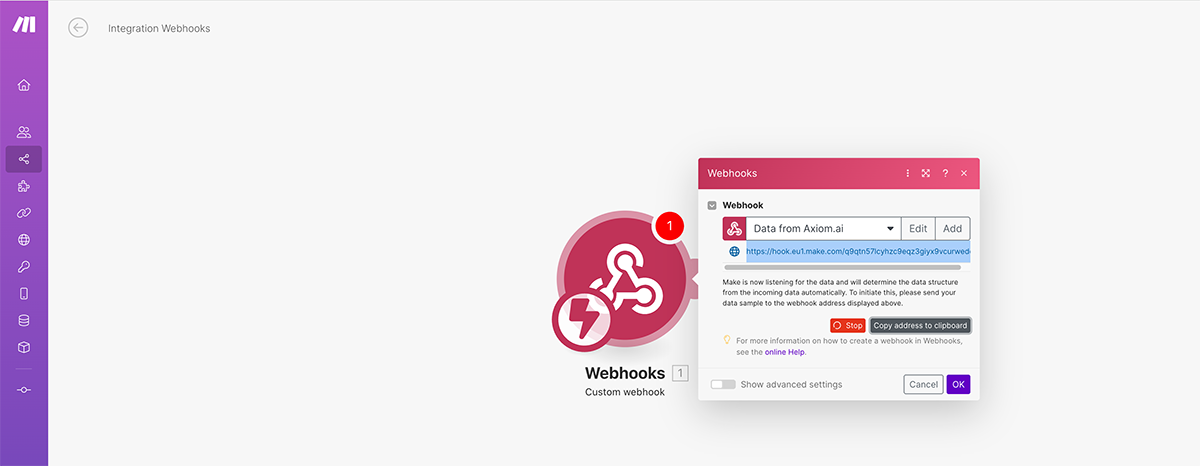
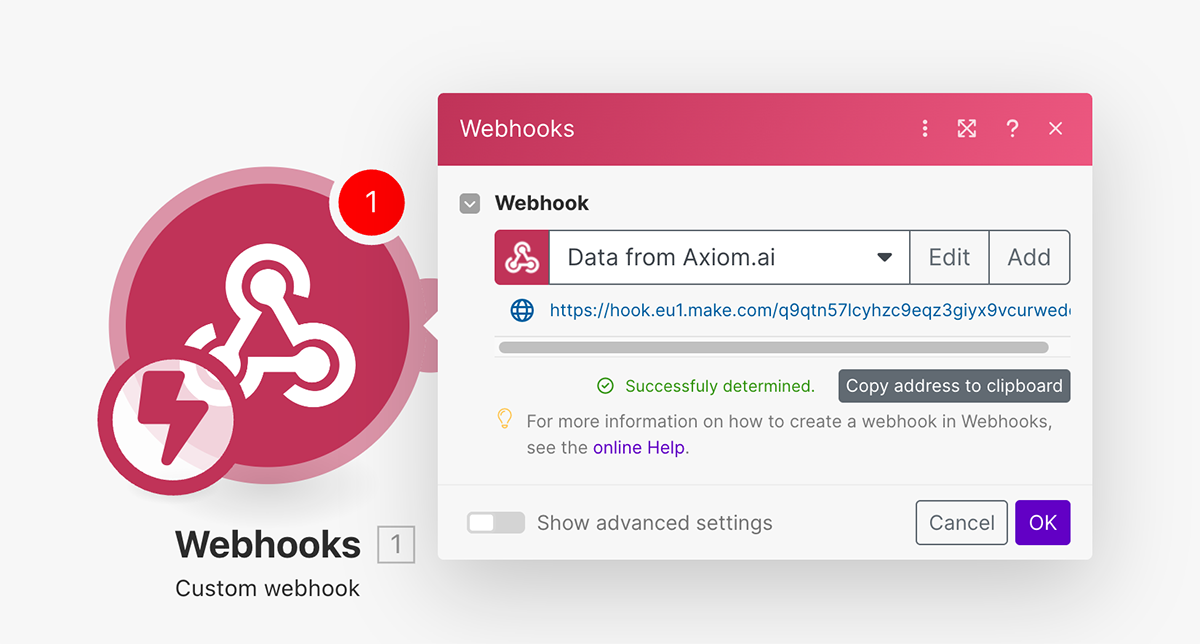
- Give your webhook a name or choose an existing one, then click "Save".
- Click "copy my address" to get the webhook endpoint to add into your browser automation.
- Make is now listening for the data and will determine the data structure automatically from the incoming data. It's time for a test run of the Axiom.ai automation you created.
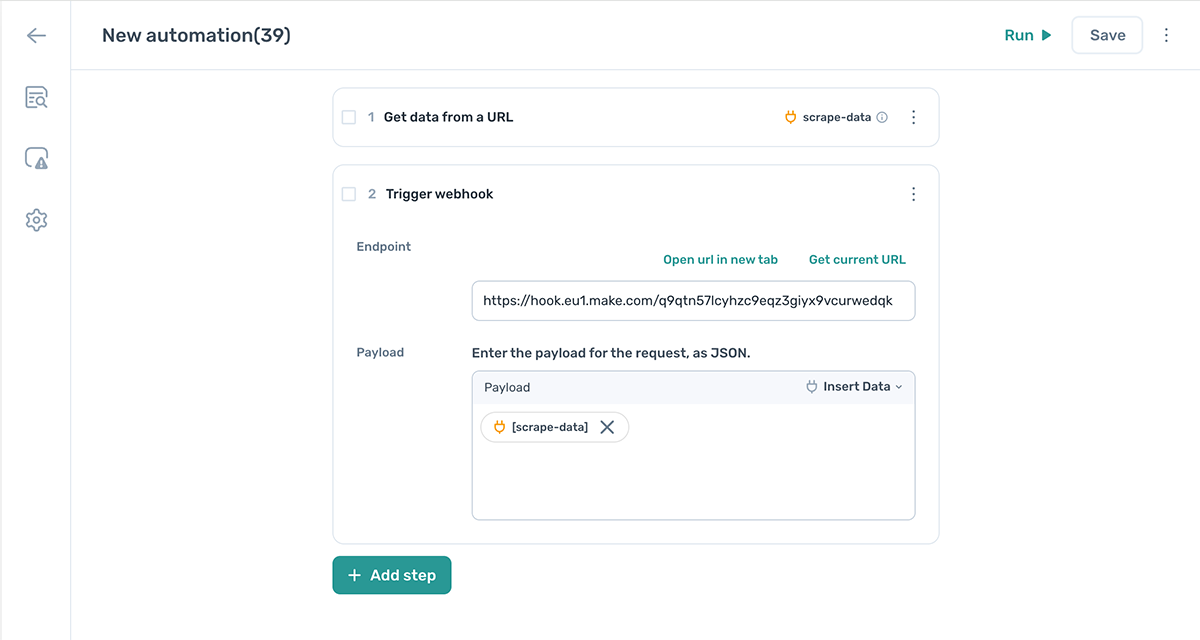
Switching to Axiom.ai, use the step finder to add the Trigger webhook step and configure it.
- Endpoint - Paste the endpoint from Make into this field.
- Click "Insert data" and select
[scrape-data]or any data you wish to send to Make.
# Use cases
Using Make with Axiom.ai can unlock a lot of opportunities, let's drive into some use cases that you can use them for.
# Post data to Excel
To send data to Excel, set up your automation and Make scenario as normal - follow the Trigger and send data to Make with an Axiom.ai automation instructions for more information. You can make use of the "Microsoft 365 Excel" integration in Make.com to pass your Axiom.ai data to your Excel sheet.
# Testing your workflow
Now click run in Axiom.ai and switch back to Make.
- Once the Axiom.ai automation has run, check in Make for the message "successfully determined".
- This means the data has been successfully sent.
# Wrapping up
Using Axiom.ai and Make allows you to connect your browser to thousands of apps via API connections. With just three steps, you can set up a basic browser scraper to send data to Scenarios in Make within minutes. This setup can be easily adapted to more complex use cases.