How to trigger Axiom.ai automations using Postman
You can trigger a run using an API request. This guide will demonstrate how to quickly create a bot that can be activated through an API POST request. In this tutorial, we use Postman (opens new window) to test and trigger the bot, but the described method can be tailored for any API. This guide assumes that you have already set up an account in Postman and obtained your Axiom.ai token. To use the receive data from another app step and access an API key, you will need a Pro or higher subscription.
# Getting started
To get started, you will need the following from the Axiom.ai Chrome extension:
- API key - The API key is found on the dashboard.
- Automation name - Get the name of the automation you wish to trigger.
- Endpoint - The current endpoint is
https://lar.axiom.ai/api/v3/trigger.
# Trigger an Axiom.ai automation with Postman
# Create a Postman request
- Log in to Postman. On the dashboard under get started, click on new request.
- Change the API request type to POST.
- In the post URL field, insert the endpoint from above.
- Now, select body and then raw, ensuring the format is set to JSON.
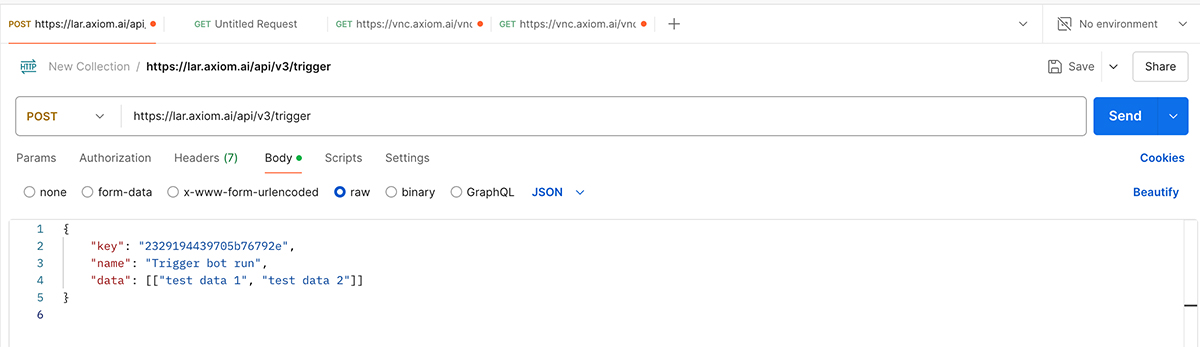
- In the body, insert Axiom.ai's API key, the automations's name, and the data you wish to send. See below for an example.
- Add your test data. It must be in the form of a nested array as illustrated below, or you will get an error message, see API | Triggering an automation for more details.
Copy the example below.
{
	"key": "2329194439705b76792e",
	"name": "Post data webhook",
	"data": [["A1", "B1", "C1"], ["A2", "B2", "C2"]]
}
Below is the above example inserted in Postman.
# Set up your Axiom.ai automation
On the dashboard, click new automation and then select add first step. Use the step finder to add the steps illustrated in the design pattern below.
- Add a receive data from another app step to receive the data sent from Postman
- Add a go to page step to load a page within your automation.
# Testing your workflow

- Click send.
- After clicking send, you will see an OPEN LINK IN BROWSER attribute within the response. Open the URL to view the automation running.
- In Axiom.ai, on the dashboard, click Run Report to see the status of the run triggered via the API.
# Wrapping up
Using Postman in tandem with Axiom.ai makes it easy to prototype and test an automation using an API send request. This is useful when you want to test the feasibility of creating an automation to integrate with an API that has yet to be built or is missing the data required for the automation.