Learn how to set up notifications
# Send notifications
Notifications allow you to receive an email notification regarding automation events, this can be helpful when you are using automation.
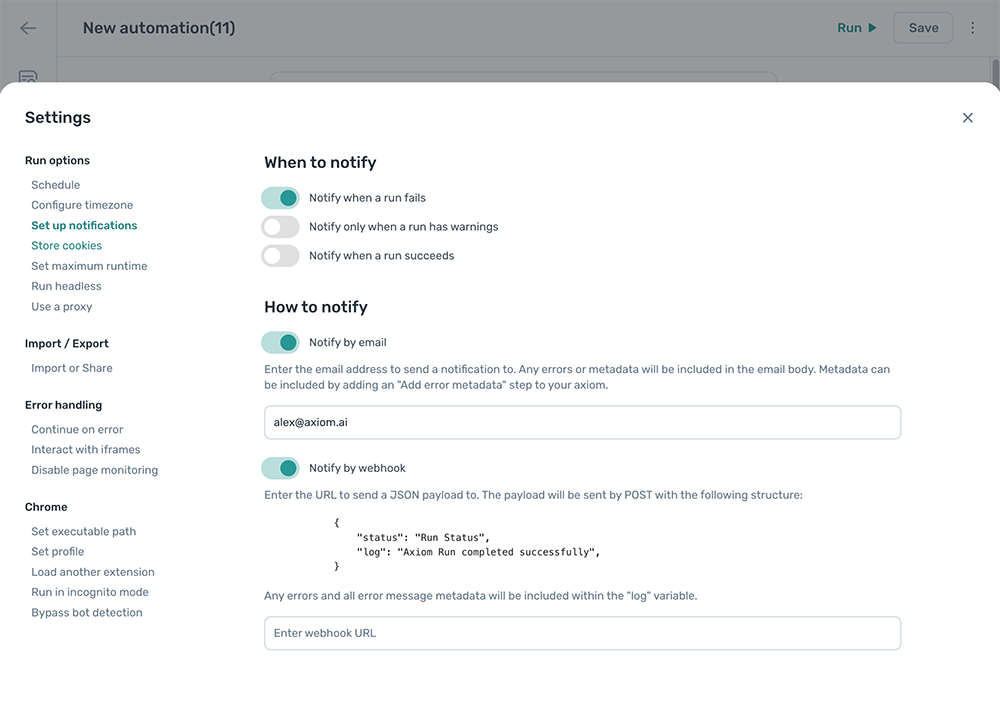
Notifications can be enabled for the following automation events:
- When a run fails
- When a run has warnings
- When a run succeeds
# How to send notifications
How
- Open your automation, click on the "Cog" icon in the icon toolbar on the left.
- Click on "Set up notifications" under "Run options"
- Choose your notification conditions by toggling to 'on'.
- Finally, select your notification method email or webhook.
Please note:
- Notify by email - Enter a list of email addresses to send the notification to, one email address per line. Any errors or metadata will be included in the email body. Metadata can be included by adding an "Add error metadata" step to your axiom.
- Notify by webhook - Enter the URL to send a JSON payload to. The payload will be sent by POST with the following structure. Any errors and all error message metadata will be included within the "log" variable:
{
    "status": "Run Status",
    "log": "Axiom Run completed successfully",
}
# Sending notifications to Slack
To send run notifications via Slack, enable "Notify by webhook". You'll need to set up a Slack Workflow to be able to accept the JSON payload that is sent from Axiom. For more information on setting up a Slack Workflow to use with Axiom, see the "Triggering a Slack workflow with an Axiom.ai automation" in our How to automate Slack with Axiom.ai guide. Modifications will be required to accept the payload that Axiom will send (see above).