Load another extension
By default, Axiom.ai will not load your extensions when you are running it on the standard, built-in version of Chromium that it runs in out of the box. If required, there are methods of working with your extensions.
Good to know
- Not all extensions will be able to load or work as expected within Chromium.
- Adblockers, and other extensions that block resources may impact the performance of Axiom.ai. Ensure Axiom.ai is whitelisted - contact the extension developer for further details.
- You will not be able to interact with the extension during your automation run. You may be able to interact with elements that have been inserted into a page's HTML, provided it is inserted before the Axiom.ai script runs.
- Only 1 extension can be loaded at any one time.
- You may need to update the file path from time to time as the extension is updated.
Alternatively, your automations can be run on your local instance of Chrome, see Set executable path. You will not be able to interact with your extensions, but you may find that they are more reliable.
# Configuration
To get started, you will need to ensure that the extension is installed on your local version of Chrome (or another Chromium-based browser) either through the Chrome Web Store (opens new window) or a local installation.
- Navigate to
chrome://extensionsand locate the ID of the extension, save this for later use. - Navigate to
chrome://versionand locate the profile path. - Navigate to this location on your computer and open the
Extensionsfolder. - Locate the extension you wish to load, this will be in a folder named with the ID from step 2.
- Open the folder, and then open the folder corresponding with the latest version of the extension.
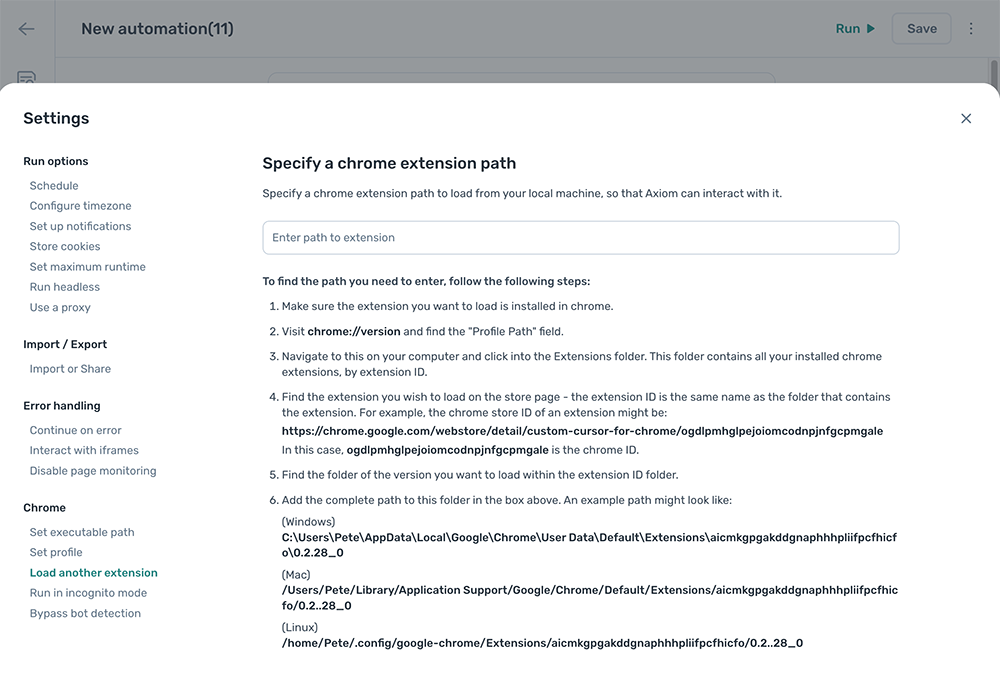
- Copy the file path and paste the file path into the field within your automation settings, see Understanding the file path.
# Understanding the file path
This file path should look similar to the examples below:
Windows: c:\Users\<USER>\AppData\Local\Google\Chrome\User Data\Default\Extensions\<EXTENSION_ID>\<EXTENSION_VERSION>
macOS: /Users/<USER>/Library/Application Support/Google/Chrome/Default/Extensions/<EXTENSION_ID>/<EXTENSION_VERSION>
Linux: /home/<USER>/.config/google-chrome/Extensions/<EXTENSION_ID>/<EXTENSION_VERSION>
Where <EXTENSION_ID is taken from step 2, and <EXTENSION_VERSION> is the latest version of the extension.
# Troubleshooting
Extension is not loading: Check the file path that you are using and ensure that it is pointing to the right extension, and version of that extension.
Extension is not working: The extension may not work in Chromium, or require additional configuration that is not possible with Axiom.ai. Extensions that require a sign in will not be compatible, consider running your automation on your local Chrome installation instead. See Set executable path for more details.
Browser could not be started: See Browser could not be started.