How to dynamically write to a Google Sheet row
Learn how to append data to a specific row in a Google Sheet by combining a few steps using our builder. This design pattern is useful when you have a list of links and want to append some data to the same row where the link is located.
# Design pattern: Write to Google Sheet row dynamically
- Read data from Google Sheet
- Scrape data (or other actions)
- Write data to the correct row in Google Sheet
# Set up a Google Sheet
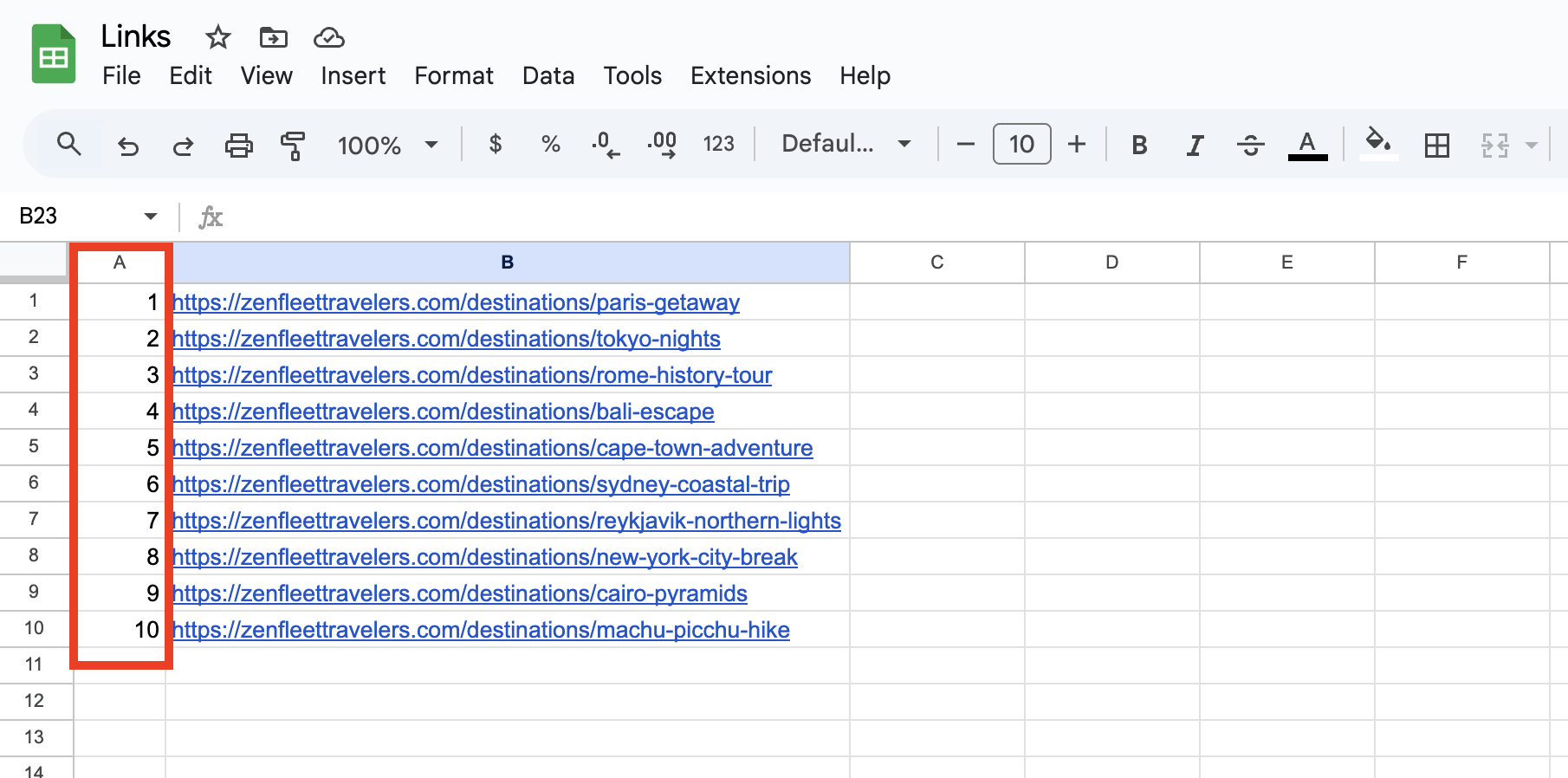
Prepare your Google Sheet by creating a separate column with the row numbers.
# In your automation
Start by connecting your Google Sheet. Add the "Add a "Read data from Google Sheet" step. This will help to retrieve the column with the row number which will be used in the subsequent step to write data to the correct row.
How
- Spreadsheet – Select your Google Sheet.
- Sheet name – Choose the relevant worksheet.
- First cell - specify the starting cell (for example, if your sheet contains headers, specify A2 as a first cell)
- Last cell - specify the last cell (for example, if you want to run test with a limited subset of your data, you can specify B5 to retrive data from colums A and B, rows 2-5)
# Add a "Loop through data" step
Use a loop to process each row from the Google Sheet individually.
How
- Select the [oogle-sheet-data] token.
- Enable "Loop through all".
# Add your desired action(s)
Add any automation steps needed between reading and writing, such as scraping a page or performing any additional browser actions.
# Add a "Write to Google Sheet" step
Now write data to the correct row in your Google Sheet based on the row number.
How
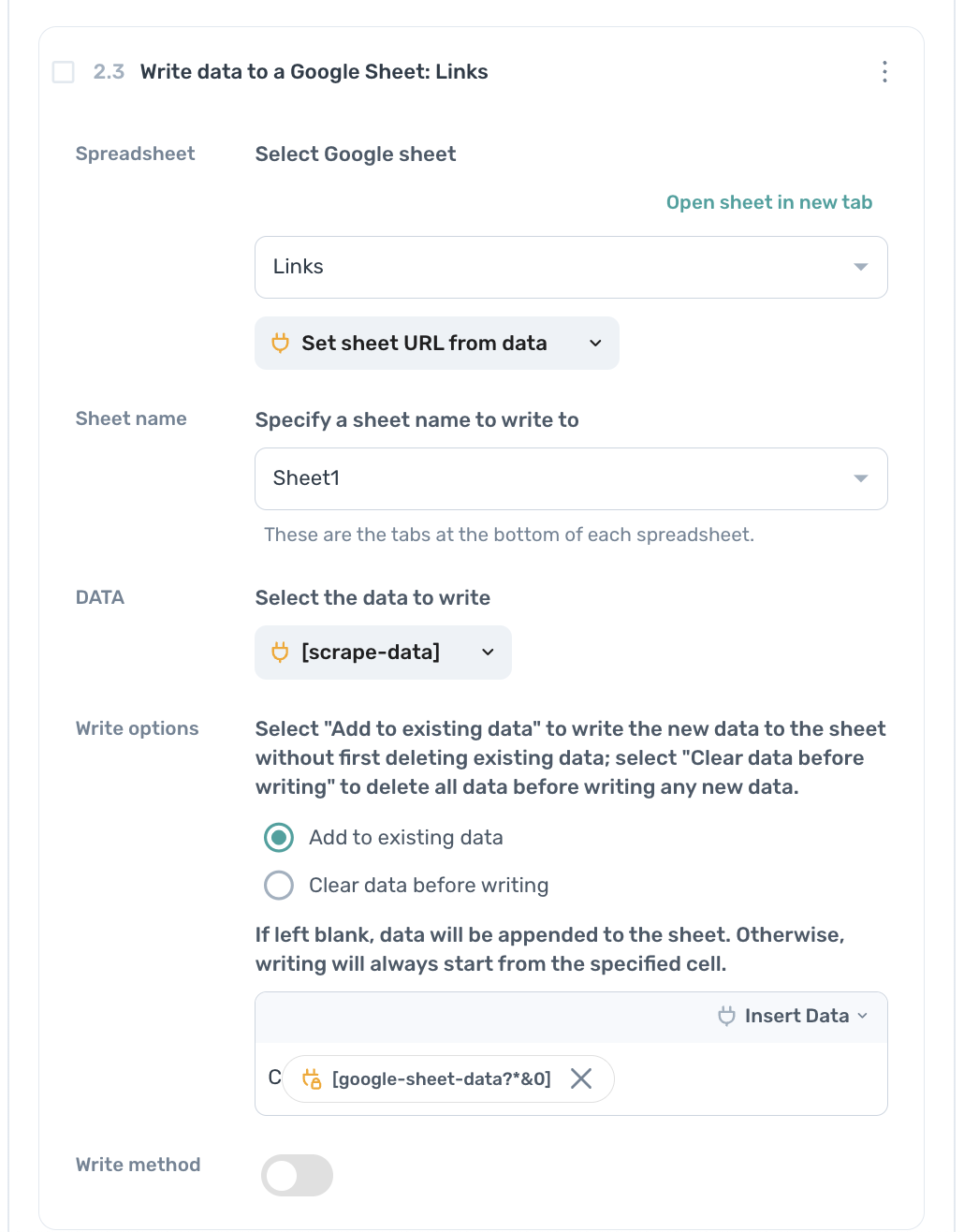
- Spreadsheet – Select the same Google Sheet as above.
- Sheet name – Choose the same worksheet as above or a different one as needed.
- DATA - Select the token with the data to write to the sheet, quite often it will be [scrape-data].
- Write options – Add the column where the data should be written (for example, C or D). Click "Insert data", then use a token from the "Read data from Google Sheet" step to match the Row column.
# Wrapping up
Create an automation that reads your sheet, processes data, and writes results to the exact row using.
Prev: How to extract links and write to a CSV
Next: Write data to a Google Sheet step